#kubernetes
## Setup Architecture
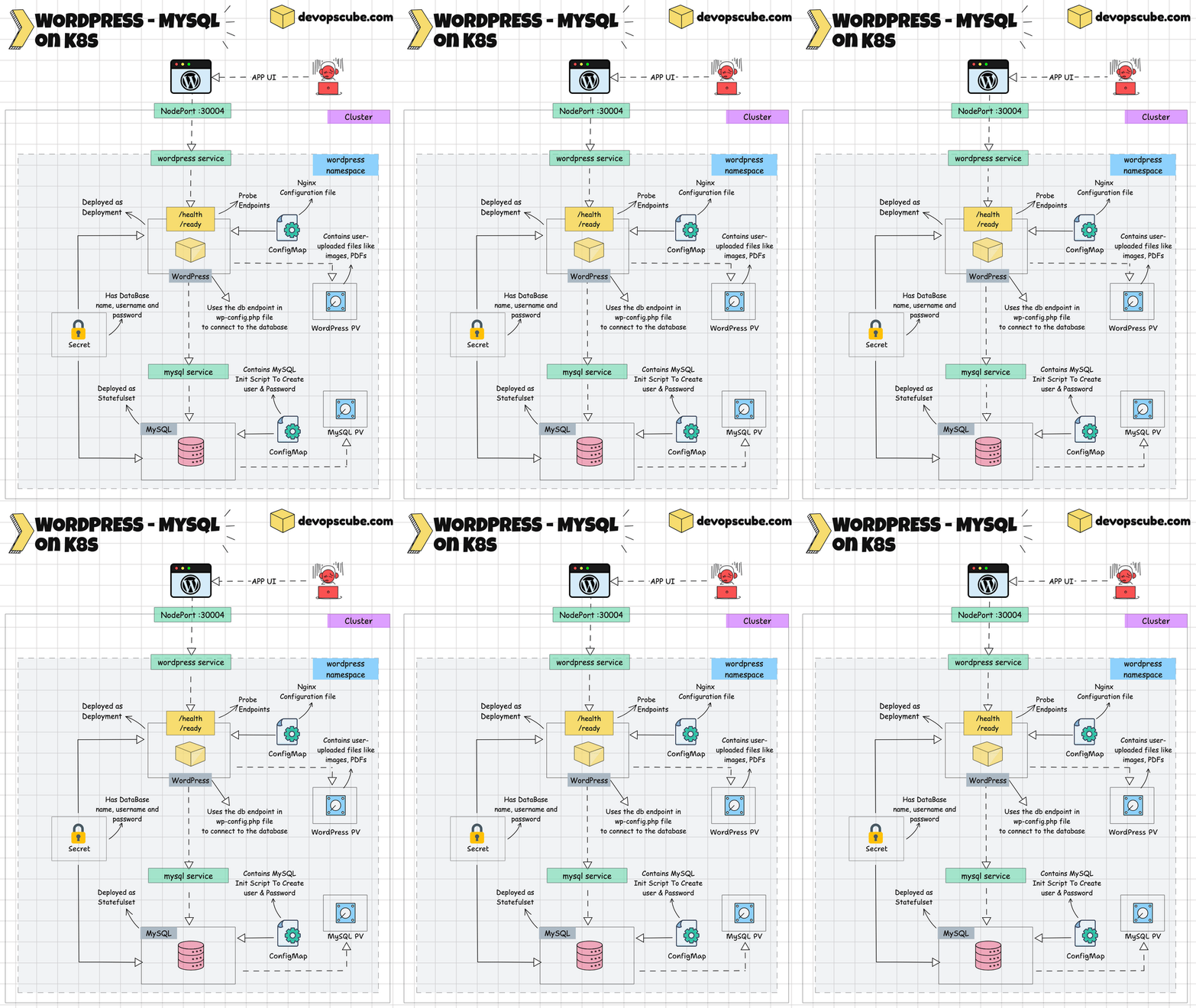
The workflow of this setup is given in the below diagram.
[
](https://devopscube.com/content/images/2025/07/wordpress-mysql.gif)
You will practically use the following key [Kubernetes objects.](https://devopscube.com/kubernetes-objects-resources/)
1. **Namespace** - This isolates the resources used in this deployment.
2. **Secret** - Used to store MySQL database credentials securely, which will be fetched when deploying MySQL and Wordpress.
3. **ConfigMap** - We will create two configmaps, one for Nginx configuration and the other for MySQL init script.
4. **PersistantVolumeClaim (PVC)** - This creates and attaches PVs to WordPress Applications and MySQL databases to store data.
5. **StatefulSet** - MySQL database is deployed as a statefulset.
6. **Deployment** - WordPress application is deployed as a deployment.
7. **Services** - Exposes Wordpress application to the outside world and exposes MySQL database to Wordpress within the cluster.
8. **NetworkPolicy** - Assign a network policy for MySQL to restrict its incoming traffic.
## Manifest Repository
Clone the [Kubernetes Projects repository](https://github.com/techiescamp/kubernetes-projects.git?ref=devopscube.com) given below which contains every file we are going to use in this deployment.
```
git clone https://github.com/techiescamp/kubernetes-projects.git
```
CD into `04-WordPress-deployment` and follow the below steps
The directory structure is given below
```
.
├── Docker
│ ├── Dockerfile
│ ├── php.ini
│ ├── startup.sh
│ ├── wordpress.conf
│ └── wp-config.php
├── mysql-cm.yaml
├── mysql.yaml
├── networkpolicy.yaml
├── nginx-cm.yaml
├── secret.yaml
├── vpa.yaml
└── wordpress.yaml
```
## Steps to Deploy WordPress on Kubernetes with Nginx and MySQL
> **Note:** You can skip the steps 1 & 2 if you only want to try the Kubernetes deployment. Just use the container image provided in the guide.
Let's start the deployment process, follow the below steps one by one.
### Step 1: Build a Custom Docker Image of WordPress
In this custom image, we are going to install Nginx instead of Apache webserver and also add the configuration file of Nginx and WordPress.
CD into the **Docker** folder, you can see the following file
```
.
├── Dockerfile
├── php.ini
├── startup.sh
├── wordpress.conf
└── wp-config.php
```
To [build the Docker](https://devopscube.com/build-docker-image/) image of WordPress with Nginx, use the Dockerfile which is inside the Docker directory
```bash
# Use Ubuntu as the base image
FROM ubuntu:24.04
# Set the Timezone to UTC
ENV TZ=UTC
# Install Nginx, and other necessary Packages
RUN apt-get update && apt-get install -y \
software-properties-common \
nginx \
curl \
wget \
sudo \
unzip \
&& rm -rf /var/lib/apt/lists/*
# Add PHP repository
RUN sudo add-apt-repository ppa:ondrej/php
# Install PHP
RUN apt-get update && apt-get install -y \
php8.2 php8.2-fpm php8.2-mysql php8.2-cli php8.2-gd \
&& rm -rf /var/lib/apt/lists/*
ADD php.ini /etc/php/8.2/nginx/
# Install Wordpress
RUN wget https://wordpress.org/latest.zip \
&& unzip latest.zip -d /var/www/html/ \
&& rm latest.zip
# Add Nginx config file
RUN rm /etc/nginx/sites-enabled/default
ADD wordpress.conf /etc/nginx/sites-available/
RUN ln -s /etc/nginx/sites-available/wordpress.conf /etc/nginx/sites-enabled/
# Add WordPress config file
RUN rm /var/www/html/wordpress/wp-config-sample.php
ADD wp-config.php /var/www/html/wordpress/wp-config.php
# Change the user and Permission of WordPress root directory
RUN chown -R www-data:www-data /var/www/html/wordpress \
&& chmod -R 755 /var/www/html/wordpress
# Exposing container to port 80
EXPOSE 80
# Copy the startup script and give excuitable permission
COPY startup.sh /usr/local/bin/startup.sh
RUN chmod +x /usr/local/bin/startup.sh
# Command to run the startup script
CMD ["/usr/local/bin/startup.sh"]
```
This [Dockerfile](https://devopscube.com/create-dockerfile-using-docker-init/) uses ubuntu:24.04 as the base image and sets the timezone to UTC. Then it installs Nginx, PHP, WordPress, and other required packages.
Once the packages are installed the configuration files of Nginx and Wordpress are added and the permission of the Wordpress root directory is changed.
The container is exposed to port 80 and the startup script is added. The command runs the startup script when the container starts.
```
#!/bin/bash
WP_CONFIG="/var/www/html/wordpress/wp-config.php"
sed -i "s/\${DB_NAME}/${DB_NAME}/g" $WP_CONFIG
sed -i "s/\${DB_USER}/${DB_USER}/g" $WP_CONFIG
sed -i "s/\${DB_PASSWORD}/${DB_PASSWORD}/g" $WP_CONFIG
sed -i "s/\${DB_HOST}/${DB_HOST}/g" $WP_CONFIG
service php8.2-fpm start
nginx -g 'daemon off;'
```
This is the startup script that uses the SED command to replace the values of the MySQL database name, username, password, and host URL to the WordPress configuration file **wp-config.php**.
Add runs the command that starts the PHP and Nginx webserver.
Run the below command from the same directory where the Dockerfile is present to build the Docker image.
```
docker build -t wordpress-nginx:7.0.0 .
```
### Step 2: Push the image to DockerHub
First, tag the image using the following command
```
docker tag wordpress-nginx:7.0.0 techiescamp/wordpress-nginx:7.0.0
```
Now, use the command to push the image to DockerHub. Before pushing, make sure you have logged in to the **Docker Hub** from the CLI.
```
docker push techiescamp/wordpress-nginx:7.0.0
```
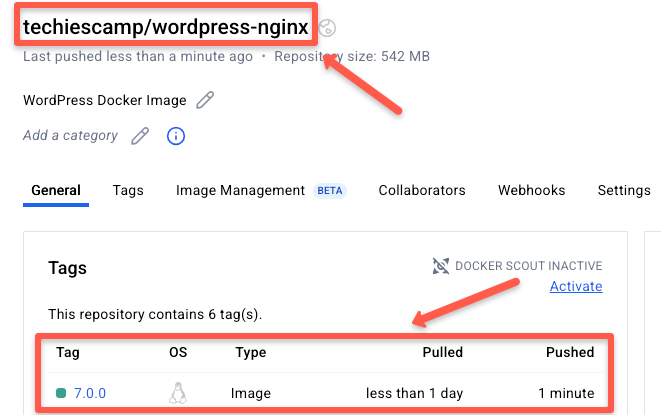
Check if your image is pushed into DockerHub as shown below.
[](https://devopscube.com/content/images/2025/07/image-165.png)
### Step 3: Create a Namespace
CD into `04-WordPress-deployment` and run the below commands, you will find all the manifest files inside the **04-WordPress-deployment** directory.
Let's start by creating a WordPress namespace to isolate the resources we are going to deploy in the cluster.
Run the following command to create the namespace **wordpress**.
```
kubectl create ns wordpress
```
Since we are going to create every object inside the WordPress namespace, let's set the namespace WordPress as the default namespace so that we don't have to specify the namespace every time we use the kubectl command.
Run the following command to set the **WordPress** namespace as the default namespace.
```
kubectl config set-context --current --namespace=wordpress
```
### Step 4: Create Secret
The next step is to create a secret with a database admin password, username, password, and database name.
CD into the **04-WordPress-deployment** directory and run the **secret.yaml** to create a secret on the WordPress namespace.
```
apiVersion: v1
kind: Secret
metadata:
name: mysql-cred
namespace: wordpress
type: Opaque
data:
admin-password: YWRtaW5AMTIz
username: Y3J1bmNob3Bz
password: Y3J1bmNob3BzQDEyMw==
db-name: d29yZHByZXNzX2Ri
```
We will be passing this secret as environment values in both WordPress and MySQL deployment.
Make sure to change the data in secret with your values, you can see the data are given in **base64-encoded** values.
You can use the **echo** command with **base64** to encode your data, the echo command will give the encoded values of your data. The command to encode your data is given below
```
echo -n '<data>' | base64
```
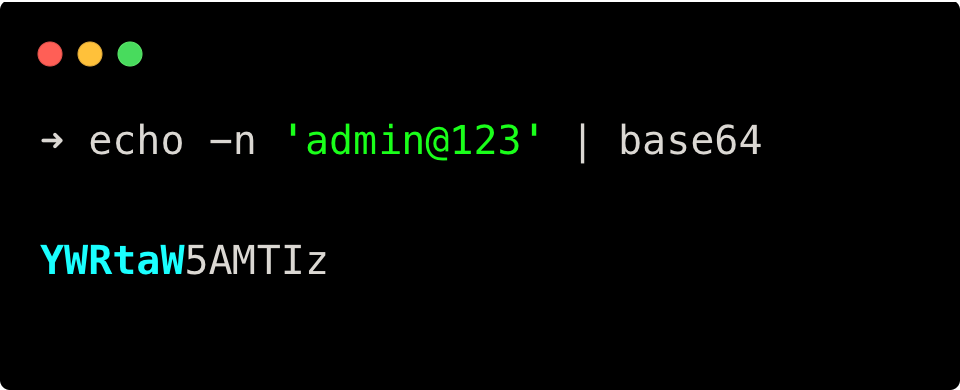
For example, if I set my **admin-password** as **admin@123**, then the echo command will be
```
echo -n 'admin@123' | base64
```
You will get an output as given below
[](https://devopscube.com/content/images/2025/07/image-167.png)
Run the following command to create the secret.
```
kubectl apply -f secret.yaml
```
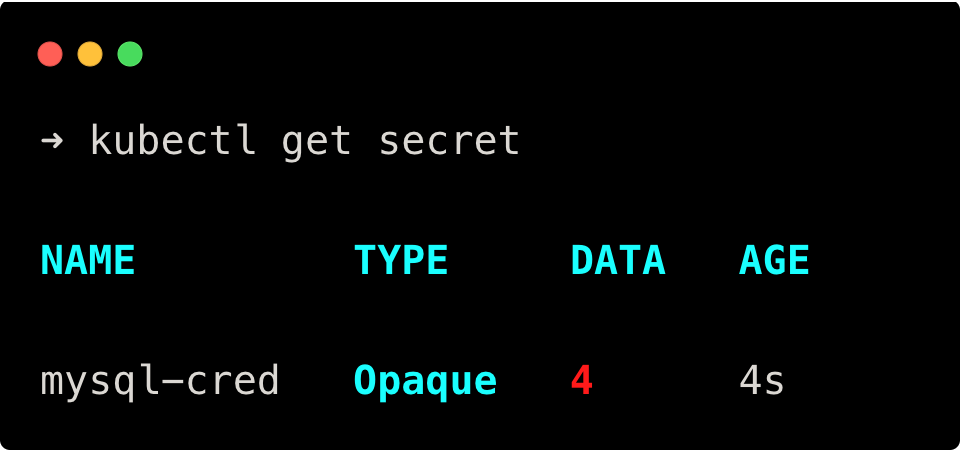
To verify if the secret is created, run the following command
```
kubectl get secret
```
You will get the following output
[](https://devopscube.com/content/images/2025/07/image-166.png)
### Step 5: Create ConfigMap
Now, let's create two configmap one for MySQL and one for Nginx.
**Create Nginx ConfigMap**
First, create configmap for Nginx, and run the **nginx-cm.yaml** file to create configmap on the WordPress namespace.
```
apiVersion: v1
kind: ConfigMap
metadata:
name: nginx-configmap
namespace: wordpress
data:
wordpress.conf: |
server {
listen 80;
root /var/www/html/wordpress;
index index.php index.html index.htm;
server_name localhost:30004;
location / {
try_files $uri $uri/ /index.php?$args;
}
location ~ \.php$ {
include snippets/fastcgi-php.conf;
fastcgi_pass unix:/var/run/php/php8.2-fpm.sock;
fastcgi_param SCRIPT_FILENAME $document_root$fastcgi_script_name;
include fastcgi_params;
}
}
```
This configmap contains the Nginx configuration file which configures Nginx with Wordpress to serve the Wordpress files on the web.
```
server_name localhost:30004;
```
Make sure to update your Domain name or IP on this file instead of localhost:30004.
Run the following command to create configmap for Nginx
```
kubectl apply -f nginx-cm.yaml
```
**Create MySQL ConfigMap**
Next, create the configmap for MySQL, and run the mysql-cm.yaml file to create the configmap on the WordPress namespace.
```
apiVersion: v1
kind: ConfigMap
metadata:
name: mysql-configmap
namespace: wordpress
data:
init.sql: |
CREATE USER '$MYSQL_USER'@'%' IDENTIFIED BY '$MYSQL_PASSWORD';
GRANT ALL PRIVILEGES ON '$MYSQL_DATABASE'.* TO '$MYSQL_USER'@'%';
FLUSH PRIVILEGES;
```
This configmap contains the SQL command to create a new user and password and also has the command to grant all privileges to the user on the specified database.
Run the following command to create configmap for MySQL
```
kubectl apply -f mysql-cm.yaml
```
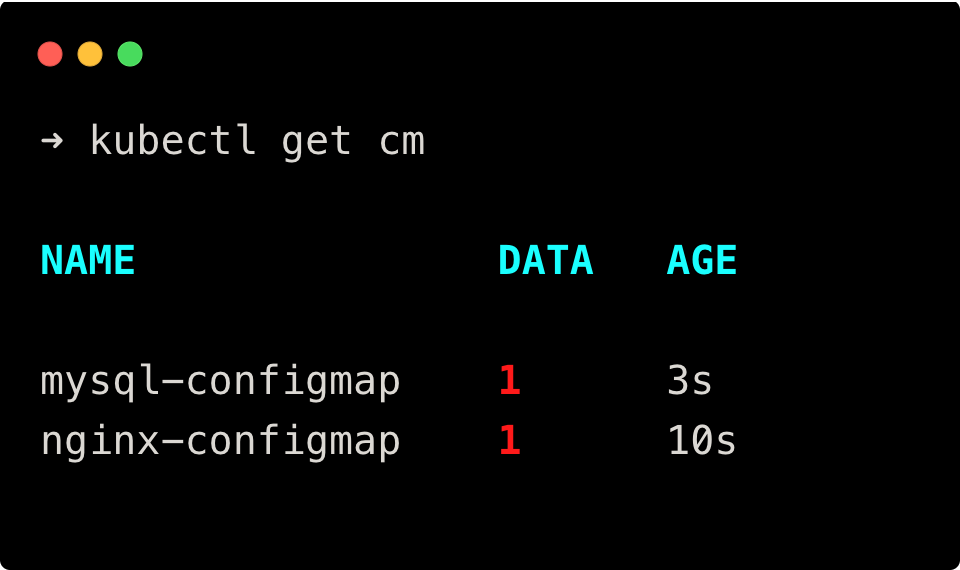
Now, run the following command to check if the configmaps are created
```
kubectl get cm
```
You will get the following output.
[](https://devopscube.com/content/images/2025/07/image-168.png)
### Step 6: Deploy MySQL Database
💡
In this setup, we are using a single replica MySQL. If you want a production grade MySQL setup, refer the [MySQL Kubernetes Operator](https://devopscube.com/install-mysql-operator-on-kubernetes/) setup.
Now, that the PVC and ConfigMap have been created, it is time to deploy MySQL database and WordPress.
First, we are going to deploy the MySQL database, and run the **`mysql.yaml`** file to deploy the database on the WordPress namespace.
```
apiVersion: apps/v1
kind: StatefulSet
metadata:
name: mysql
namespace: wordpress
spec:
serviceName: "mysql"
replicas: 1
selector:
matchLabels:
app: mysql
template:
metadata:
labels:
app: mysql
spec:
containers:
- name: mysql
image: mysql:latest
env:
- name: MYSQL_ROOT_PASSWORD
valueFrom:
secretKeyRef:
name: mysql-cred
key: admin-password
- name: MYSQL_USER
valueFrom:
secretKeyRef:
name: mysql-cred
key: username
- name: MYSQL_PASSWORD
valueFrom:
secretKeyRef:
name: mysql-cred
key: password
- name: MYSQL_DATABASE
valueFrom:
secretKeyRef:
name: mysql-cred
key: db-name
volumeMounts:
- name: mysql-volume
mountPath: /var/lib/mysql
- name: mysql-config
mountPath: /docker-entrypoint-initdb.d
resources:
requests:
memory: "256Mi"
cpu: "100m"
limits:
memory: "512Mi"
cpu: "200m"
livenessProbe:
tcpSocket:
port: 3306
initialDelaySeconds: 30
periodSeconds: 10
timeoutSeconds: 5
successThreshold: 1
failureThreshold: 3
readinessProbe:
tcpSocket:
port: 3306
initialDelaySeconds: 30
periodSeconds: 10
timeoutSeconds: 5
successThreshold: 1
failureThreshold: 3
volumes:
- name: mysql-config
configMap:
name: mysql-configmap
volumeClaimTemplates:
- metadata:
name: mysql-volume
spec:
accessModes: ["ReadWriteOnce"]
resources:
requests:
storage: 2Gi
---
apiVersion: v1
kind: Service
metadata:
name: mysql-service
namespace: wordpress
spec:
type: ClusterIP
selector:
app: mysql
ports:
- protocol: TCP
port: 3306
targetPort: 3306
```
This file deploys a **mysql** statefulset database on the wordpress namespace which uses the latest MySQL container image.
The environment variable gets the values from the secret we created in **Step 2** and the configmap gets the values during startup.
The **`docker-entrypoint-initdb.d`** directory is part of the MySQL image. Any MySQL scripts placed in this folder will be executed during MySQL startup. It is primarily used for running database initialization scripts.
In our setup, we placed an init script (**`init.sql`**) in this folder through a ConfigMap (**mysql-configmap**). **`init.sql`** creates the username and password, and gives the user all privileges on the Wordpress db.
The script retrieves the username and password from environment variables set by the secret object using **`secretKeyRef`**
And it also creates a PVC and mounts the PV on the **/var/lib/mysql** directory.
Also, I have added health checks for MySQL:
1. **livenessProbe** – This checks if MySQL is up and running by using a TCP socket check on port 3306.
2. **readinessProbe** – This checks if MySQL is ready to accept traffic.
Then, this file also creates a Service that exposes the database on port **3306**.
Run the following command to deploy MySQL and its service
```
kubectl apply -f mysql.yaml
```
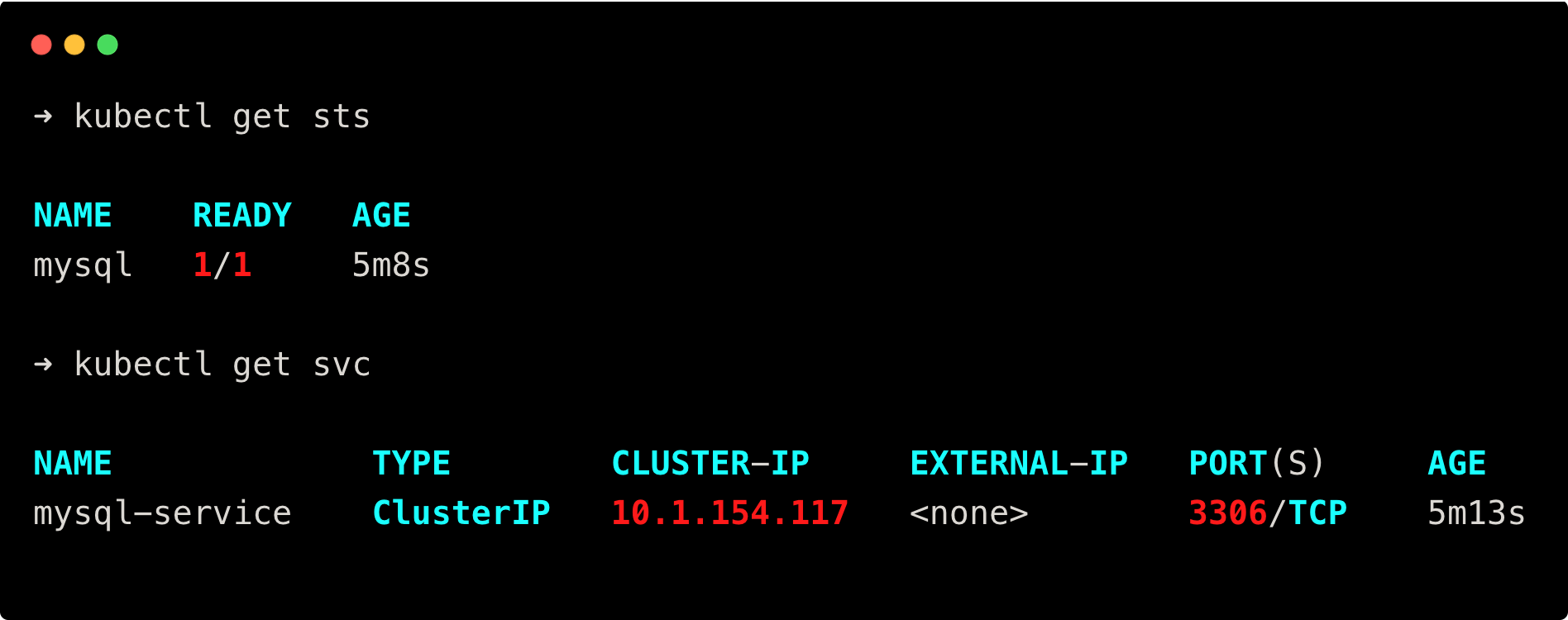
Now, run the following commands to check if the MySQL StatefulSet and its service is deployed
```
kubectl get sts
kubectl get svc
```
You will get the following output.
[](https://devopscube.com/content/images/2025/07/image-170.png)
### Step 7: Deploy WordPress
After you finish deploying the MySQL Database, the next step is to deploy the WordPress application by running the file **wordpress.yaml**.
```
apiVersion: v1
kind: PersistentVolumeClaim
metadata:
name: wordpress-pvc
namespace: wordpress
spec:
accessModes:
- ReadWriteOnce
resources:
requests:
storage: 2Gi
---
apiVersion: apps/v1
kind: Deployment
metadata:
name: wordpress
namespace: wordpress
spec:
replicas: 1
selector:
matchLabels:
app: wordpress
template:
metadata:
labels:
app: wordpress
spec:
securityContext:
fsGroup: 33
containers:
- name: wordpress
image: techiescamp/wordpress-nginx:7.0.0
env:
- name: DB_HOST
value: mysql-service.wordpress.svc.cluster.local
- name: DB_USER
valueFrom:
secretKeyRef:
name: mysql-cred
key: username
- name: DB_PASSWORD
valueFrom:
secretKeyRef:
name: mysql-cred
key: password
- name: DB_NAME
valueFrom:
secretKeyRef:
name: mysql-cred
key: db-name
ports:
- containerPort: 80
name: wordpress
resources:
requests:
memory: "256Mi"
cpu: "100m"
limits:
memory: "512Mi"
cpu: "200m"
volumeMounts:
- name: nginx-config-volume
mountPath: /etc/nginx/conf.d
- name: wordpress-persistent-storage
mountPath: /var/www/html/wordpress/wp-content/uploads
readinessProbe:
httpGet:
path: /wp-login.php
port: 80
scheme: 'HTTP'
initialDelaySeconds: 30
periodSeconds: 10
timeoutSeconds: 5
successThreshold: 1
failureThreshold: 3
livenessProbe:
httpGet:
path: /wp-admin/install.php
port: 80
scheme: 'HTTP'
initialDelaySeconds: 60
periodSeconds: 10
timeoutSeconds: 5
successThreshold: 1
failureThreshold: 3
volumes:
- name: nginx-config-volume
configMap:
name: nginx-configmap
- name: wordpress-persistent-storage
persistentVolumeClaim:
claimName: wordpress-pvc
---
kind: Service
apiVersion: v1
metadata:
name: wordpress-service
namespace: wordpress
spec:
type: NodePort
selector:
app: wordpress
ports:
- name: http
protocol: TCP
port: 80
targetPort: 80
nodePort: 30004
```
First, this application creates a PVC for the WordPress application.
Then it deploys the **WordPress** application on the WordPress namespace which uses the **techiescamp/wordpress-nginx:7.0.0** container image we created in **Step 1**.
The environment variable gets the values from the secret we created in **Step 2** and the startup script inside the container image fetches the values and updates them on the **/var/www/html/wordpress/wp-config.php/uploads** Wordpress configuration file.
It mounts the data on the configmap **nginx-cm** we created in **Step 3** on the directory **/etc/nginx/conf.d** and mounts the PV on the **/var/www/html/wordPress/wp-content/uploads** directory.
In the resource configuration, the container’s resource request is set to **256Mi memory and 100m CPU**, and the limit is set to **512Mi memory and 200m CPU**.
Also, I have added health checks for this application:
1. **readinessProbe** – This checks if the application is ready to accept traffic using the readiness path **/wp-login.php**. If this probe fails, it won’t receive any traffic.
2. **livenessProbe** – Checks if the application is up and running using the liveness path **/wp-admin/install.php**. If the probe fails, Kubernetes will restart the pod.
Then, this file also creates a Service that exposes WordPress to the outside world using nodeport 30004.
💡
You can also configure Ingress Controller instead of nodeport service to access the application on the web.
Run the following command to deploy the WordPress.
```
kubectl apply -f wordpress.yaml
```
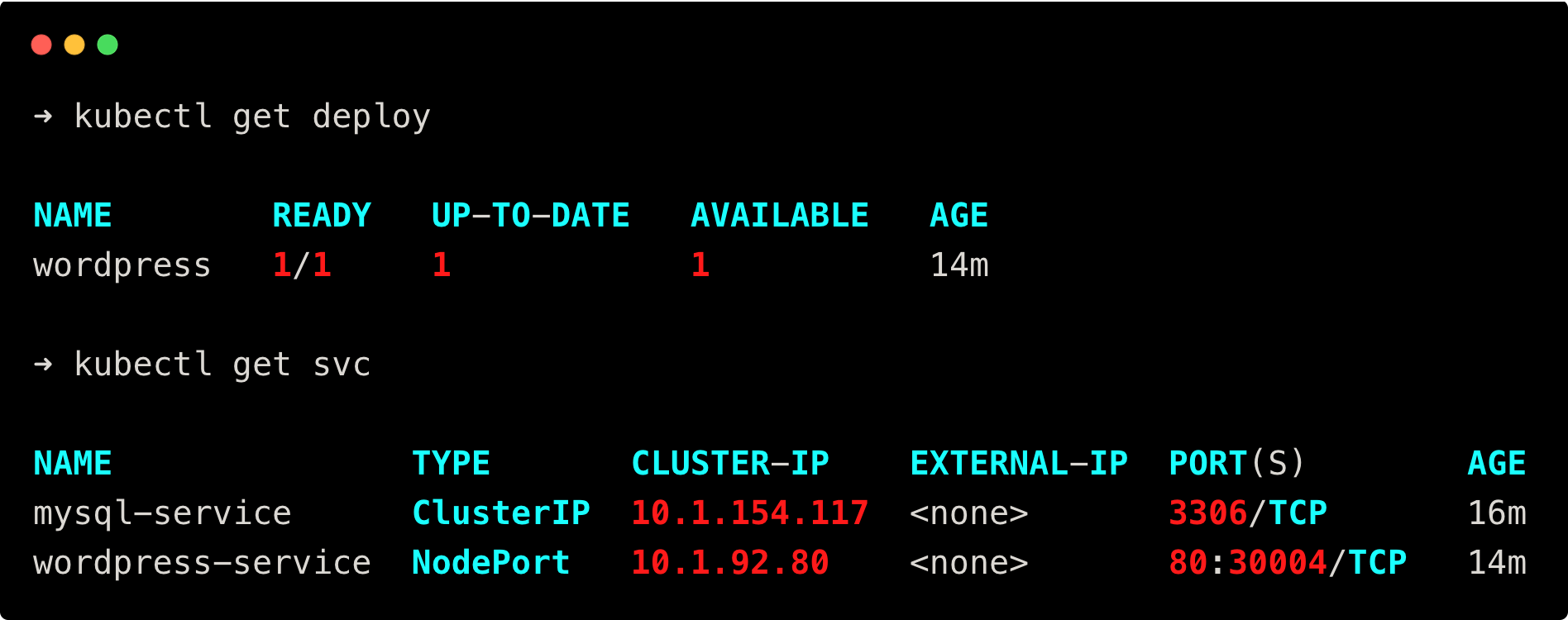
Now, run the following commands to check if the WordPress deployment and its service is deployed.
```
kubectl get deploy
kubectl get svc
```
You will get the following output.
[](https://devopscube.com/content/images/2025/07/image-171.png)
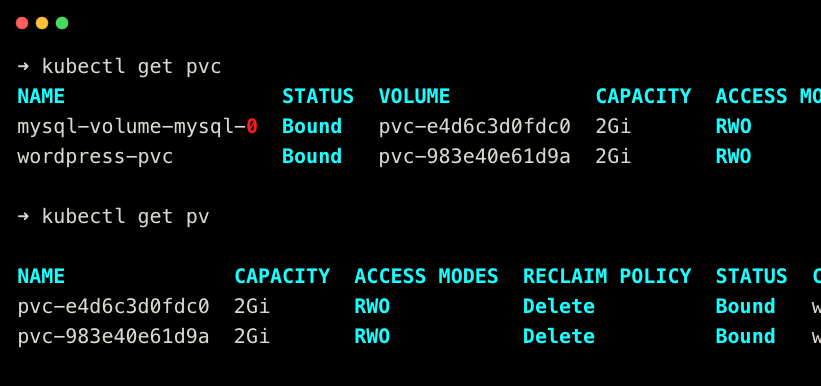
Since WordPress and MySQL have been created, check the status of PVC and PV using the following commands
```
kubectl get pvc
kubectl get pv
```
You will get the following output.
[](https://devopscube.com/content/images/2025/07/image-174.png)
As you can see, the PVC is in a bound state, and two PV for WordPress and MySQL have been created.
### Step 8: Create a NetworkPolicy
Now, that MySQL and Wordpress are deployed, create a NetworkPolicy for MySQL running the **networkpolicy.yaml** file
```
apiVersion: networking.k8s.io/v1
kind: NetworkPolicy
metadata:
name: mysql-network-policy
namespace: wordpress
spec:
podSelector:
matchLabels:
app: mysql
policyTypes:
- Ingress
- Egress
ingress:
- from:
- podSelector:
matchLabels:
app: wordpress
ports:
- port: 3306
egress:
- {}
```
This file creates a Networkpolicy for MySQL on the WordPress namespace.
The **mysql-network-policy** only allows incoming traffic from the pod labeled as **wordpress** through port 3306 and allows all outgoing traffic.
Run the following command to deploy the NetworkPolicy.
```
kubectl apply -f networkpolicy.yaml
```
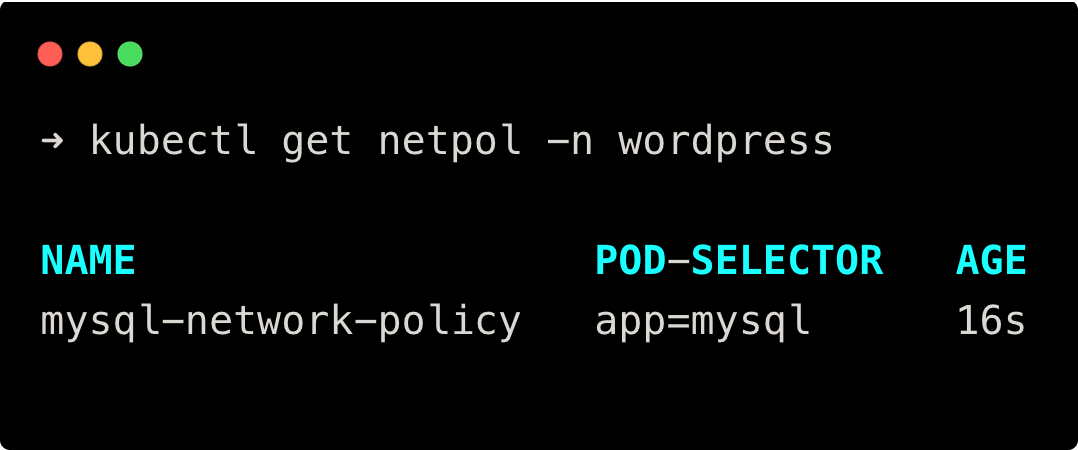
To check if the NetworkPolicies are created, run the following command
```
kubectl get netpol
```
You will get the following output.
[](https://devopscube.com/content/images/2025/07/image-175.png)
### Step 9: Log in to WordPress UI
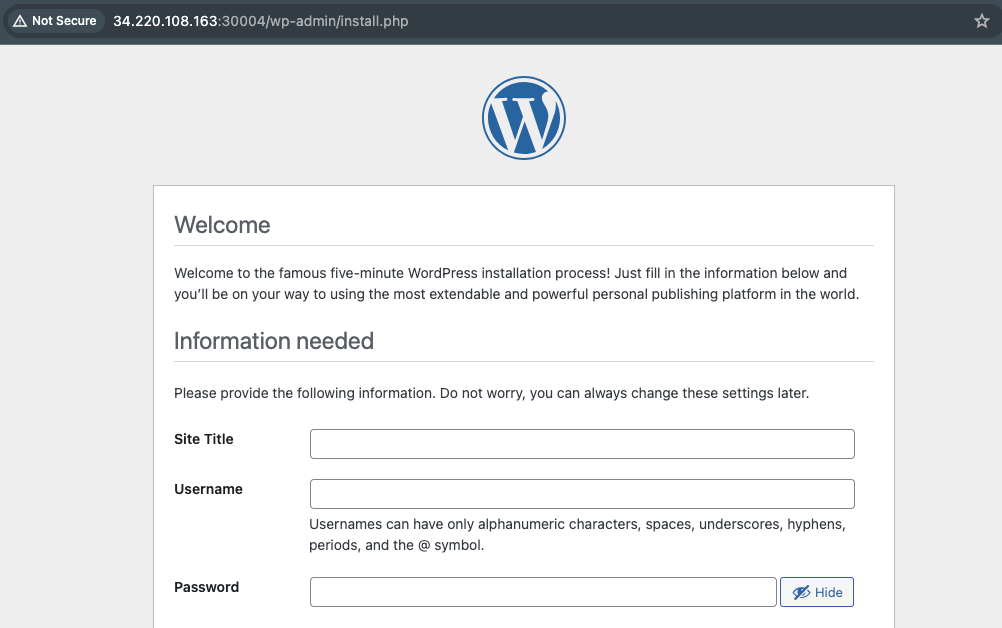
Once every object has been created, try to access WordPress on the browser by searching on the browser as **{node-IP:nodeport}** or if you have configured the Ingress Controller, search the Domain name on the browser.
Since I have deployed using NodePort, I am going to use the **node-IP:nodeport**.
You can see a tab to select the language and will get the following on the browser.
[](https://devopscube.com/content/images/2025/03/image-7-23.png)
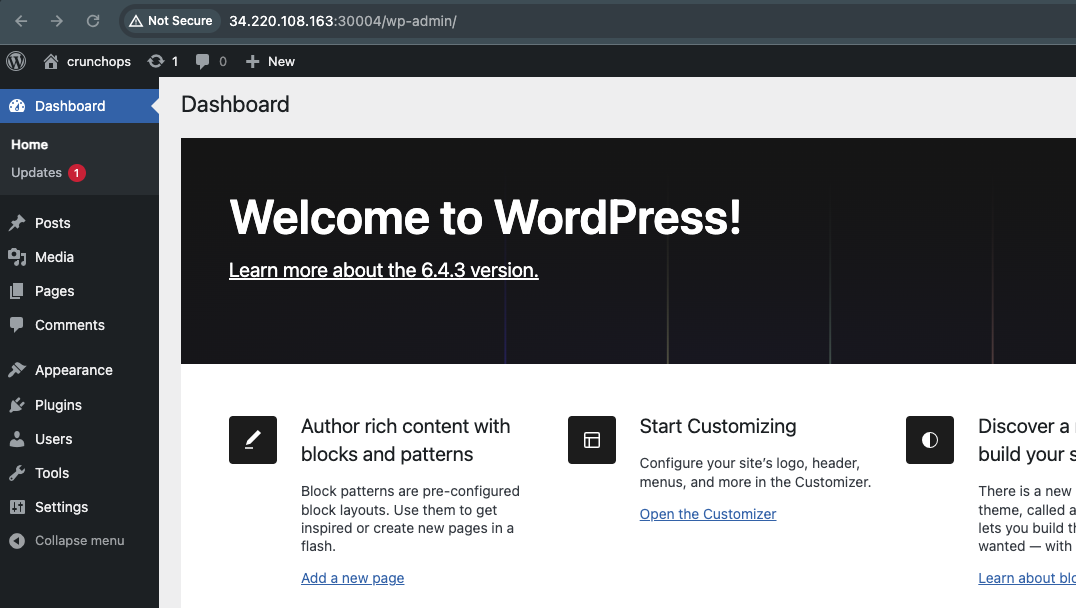
After specifying the site title, username, password, and Email, it will be forwarded to the WordPress dashboard as shown below
[](https://devopscube.com/content/images/2025/03/image-8-19.png)
## Step 10: Clean Up the Setup
Once you are done with the setup, run the following command inside the **04-WordPress-deployment** to delete all resources
```
kubectl delete -f .
```
This command will delete all the resources created by the manifest files inside the **04-WordPress-deployment** directory.
## Conclusion
In this blog, we have seen the steps to deploy WordPress on Kubernetes clusters with Nginx and MySQL databases.
Not just an installation, also added NetworkPolicy, and Probes like readiness and liveness probes to WordPress and MySQL as best practices.
I hope this blog gives you a clear understanding of deploying WordPress on Kubernetes clusters with Nginx and MySQL databases, as well as the objects used in this setup.