[[Resource management in Docker]]
In this blog post I would like to touch on the topic of resource management for Docker containers. It is often unclear how it works and what we can and cannot do.
| | |
|---|---|
|Note|I assume that you are running Docker on a systemd enabled operating system. If you are on RHEL/CentOS 7+ or Fedora 19+ this is certainly true. But please note that there can be some changes in the available configuration options between different systemd versions. When in doubt, use the systemd man pages for the system you work with.|
## The basics
Docker uses [cgroups](https://www.kernel.org/doc/Documentation/cgroups/cgroups.txt) to group processes running in the container. This allows you to manage the resources of a group of processes, which is very valuable, as you can imagine.
If we run an operating system which uses [systemd](http://www.freedesktop.org/wiki/Software/systemd/) as the service manager, every process (not only the ones inside of the container) will be placed in a cgroups tree. You can see it for yourself if you run the `systemd-cgls` command:
$ systemd-cgls
├─1 /usr/lib/systemd/systemd --switched-root --system --deserialize 22
├─machine.slice
│ └─machine-qemu\x2drhel7.scope
│ └─29898 /usr/bin/qemu-system-x86_64 -machine accel=kvm -name rhel7 -S -machine pc-i440fx-1.6,accel=kvm,usb=off -cpu SandyBridge -m 2048
├─system.slice
│ ├─avahi-daemon.service
│ │ ├─ 905 avahi-daemon: running [mistress.local
│ │ └─1055 avahi-daemon: chroot helpe
│ ├─dbus.service
│ │ └─890 /bin/dbus-daemon --system --address=systemd: --nofork --nopidfile --systemd-activation
│ ├─firewalld.service
│ │ └─887 /usr/bin/python -Es /usr/sbin/firewalld --nofork --nopid
│ ├─lvm2-lvmetad.service
│ │ └─512 /usr/sbin/lvmetad -f
│ ├─abrtd.service
│ │ └─909 /usr/sbin/abrtd -d -s
│ ├─wpa_supplicant.service
│ │ └─1289 /usr/sbin/wpa_supplicant -u -f /var/log/wpa_supplicant.log -c /etc/wpa_supplicant/wpa_supplicant.conf -u -f /var/log/wpa_supplica
│ ├─systemd-machined.service
│ │ └─29899 /usr/lib/systemd/systemd-machined
[SNIP]
This approach gives a lot of flexibility when we want to manage resources, since we can manage every group individually. Although this blog post focuses on containers, the same principle applies to other processes as well.
| | |
|---|---|
|Note|If you want to read more about resource management with systemd I highly recommend the [Resource Management and Linux Containers Guide](https://access.redhat.com/documentation/en-US/Red_Hat_Enterprise_Linux/7/html/Resource_Management_and_Linux_Containers_Guide/index.html) for RHEL 7.|
### A note on testing
In my examples I’ll use the `stress` tool that helps me to generate some load in the containers so I can actually see the resource limits being applied. I created a custom Docker images called (surprisingly) `stress` using this `Dockerfile`:
```bash
FROM fedora:latest
RUN yum -y install stress && yum clean all
ENTRYPOINT ["stress"]
```
### A note on resource reporting tools
The tools you are used to using to report usage like `top`, `/proc/meminfo` and so on **are not cgroups aware**. This means that they’ll report the information about the host even if we run them inside of a container. I found a [nice blog post](http://fabiokung.com/2014/03/13/memory-inside-linux-containers/) from Fabio Kung on this topic. Give it a read.
So, what can we do?
If you want to quickly find which container (or any systemd service, really) uses the most resources on the host I recommend the `systemd-cgtop` command:
$ systemd-cgtop
Path Tasks %CPU Memory Input/s Output/s
/ 226 13.0 6.7G - -
/system.slice 47 2.2 16.0M - -
/system.slice/gdm.service 2 2.1 - - -
/system.slice/rngd.service 1 0.0 - - -
/system.slice/NetworkManager.service 2 - - - -
[SNIP]
This tool can give you a quick overview of what’s going on on the system right now. But if you want to get some detailed information about the usage (for example you need to create nice graphs) you will want to parse the `/sys/fs/cgroup/…` directories. I’ll show you where to find useful files for each resource I will talk about (look at the _CGroups fs_ paragraphs below).
## CPU
Docker makes it possible (via the `-c` [switch of the `run` command](http://docs.docker.com/reference/run/#runtime-constraints-on-cpu-and-memory)) to specify a value of shares of the CPU available to the container. This is a **relative weight** and has nothing to do with the actual processor speed. In fact, there is no way to say that a container should have access only to 1Ghz of the CPU. Keep that in mind.
Every new container will have `1024` shares of CPU by default. This value does not mean anything, when speaking of it alone. But if we start two containers and both will use 100% CPU, the CPU time will be divided equally between the two containers because they both have the same CPU shares (for the sake of simplicity I assume that there are no other processes running).
If we set one container’s CPU shares to `512` it will receive half of the CPU time compared to the other container. But this does not mean that it can use only half of the CPU. If the other container (with `1024` shares) is idle — our container will be allowed to use 100% of the CPU. That’s another thing to note.
Limits are enforced only when they should be. CGroups does not limit the processes upfront (for example by not allowing them to run fast, even if there are free resources). Instead it gives as much as it can and limits only when necessary (for example when many processes start to use the CPU heavily at the same time).
Of course it’s not easy (and I would say impossible) to say how many resources will be assigned to your process. It really depends on how other processes will behave and how many shares are assigned to them.
### Example: managing the CPU shares of a container
As I mentioned before you can use the `-c` switch to manage the value of shares assigned to all processes running inside of a Docker container.
Since I have 4 cores on my machine available, I’ll tell stress to use all 4:
$ docker run -it --rm stress --cpu 4
stress: info: [1] dispatching hogs: 4 cpu, 0 io, 0 vm, 0 hdd
If we start two containers the same way, both will use around 50% of the CPU. But what happens if we modify the CPU shares for one container?
$ docker run -it --rm -c 512 stress --cpu 4
stress: info: [1] dispatching hogs: 4 cpu, 0 io, 0 vm, 0 hdd
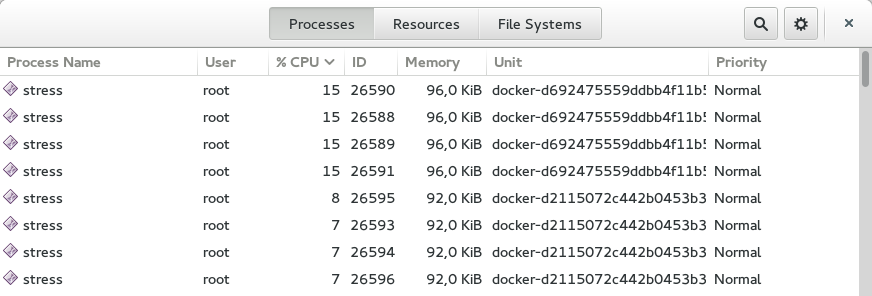
As you can see, the CPU is divided between the two containers in such a way that the first container uses ~60% of the CPU and the other ~30%. This seems to be the expected result.
| | |
|---|---|
|Note|The missing ~10% of the CPU was taken by GNOME, Chrome and my music player, in case you were wondering.|
### Attaching containers to cores
Besides limiting shares of the CPU, we can do one more thing: we can pin the container’s processes to a particular processor (core). To do this, we use the `--cpuset` switch of the `docker run` command.
To allow execution only on the first core:
docker run -it --rm --cpuset=0 stress --cpu 1
To allow execution only on the first two cores:
docker run -it --rm --cpuset=0,1 stress --cpu 2
You can of course mix the option `--cpuset` with `-c`.
| | |
|---|---|
|Note|Share enforcement will only take place when the processes are run on the same core. This means that if you pin one container to the first core and the other container to the second core, both will use 100% of each core, even if they have different a CPU share value set (once again, I assume that only these two containers are running on the host).|
### Changing the shares value for a running container
It is possible to change the value of shares for a running container (or any other process, of course). You can directly interact with the cgroups filesystem, but since we have systemd we can leverage it to manage this for us (since it manages the processes anyhow).
For this purpose we’ll use the `systemctl` command with the `set-property` argument. Every new container created using the `docker run` command will have a systemd scope automatically assigned under which all of its processes will be executed. To change the CPU share for all processes in the container we just need to change it for the scope, like so:
$ sudo systemctl set-property docker-4be96b853089bc6044b29cb873cac460b429cfcbdd0e877c0868eb2a901dbf80.scope CPUShares=512
| | |
|---|---|
|Note|Add `--runtime` to change the setting temporarily. Otherwise, this setting will be remembered when the host is restarted.|
This changes the default value from `1024` to `512`. You can see the result below. The change happens somewhere in the middle of the recording. Please note the CPU usage. In `systemd-cgtop` 100% means full use of 1 core and this is correct since I bound both containers to the same core.
| | |
|---|---|
|Note|To show all properties you can use the `systemctl show docker-4be96b853089bc6044b29cb873cac460b429cfcbdd0e877c0868eb2a901dbf80.scope` command. To list all available properties take a look at `man systemd.resource-control`.|
### CGroups fs
You can find all the information about the CPU for a specific container under `/sys/fs/cgroup/cpu/system.slice/docker-$FULL_CONTAINER_ID.scope/`, for example:
$ ls /sys/fs/cgroup/cpu/system.slice/docker-6935854d444d78abe52d629cb9d680334751a0cda82e11d2610e041d77a62b3f.scope/
cgroup.clone_children cpuacct.usage_percpu cpu.rt_runtime_us tasks
cgroup.procs cpu.cfs_period_us cpu.shares
cpuacct.stat cpu.cfs_quota_us cpu.stat
cpuacct.usage cpu.rt_period_us notify_on_release
| | |
|---|---|
|Note|More information about these files can be found in the [RHEL Resource Management Guide](https://access.redhat.com/documentation/en-US/Red_Hat_Enterprise_Linux/6/html/Resource_Management_Guide/index.html). This information is spread across the cpu, cpuacct and cpuset sections.|
### Recap
A few things to remember:
1. a CPU share is just a number — it’s not related to the CPU speed
2. By default new containers have `1024` shares
3. On an idle host a container with low shares will still be able to use 100% of the CPU
4. You can pin a container to specific core, if you want
## Memory
Now let’s take a look at limiting memory.
The first thing to note is that a **container can use all of the memory on the host with the default settings**.
If you want to limit memory for all of the processes inside of the container just use the `-m` docker run switch. You can define the value in bytes or by adding a suffix (`k`, `m` or `g`).
### Example: managing the memory shares of a container
You can use the `-m` switch like so:
$ docker run -it --rm -m 128m fedora bash
To show that the limitation actually works I’ll use my `stress` image again. Consider the following run:
$ docker run -it --rm -m 128m stress --vm 1 --vm-bytes 128M --vm-hang 0
stress: info: [1] dispatching hogs: 0 cpu, 0 io, 1 vm, 0 hdd
The `stress` tool will create one process and try to allocate 128MB of memory to it. It works fine, good. But what happens if we try to use more than we have actually allocated for the container?
$ docker run -it --rm -m 128m stress --vm 1 --vm-bytes 200M --vm-hang 0
stress: info: [1] dispatching hogs: 0 cpu, 0 io, 1 vm, 0 hdd
It works too. Surprising? Yes I agree.
We can find the explanation for this in the [libcontainer source code](https://github.com/docker/libcontainer/blob/v1.2.0/cgroups/fs/memory.go#L39) (Docker’s interface to cgroups). We can see there that by default the `memory.memsw.limit_in_bytes` value is set to twice as much as the memory parameter we specify while starting a container. What does the `memory.memsw.limit_in_bytes` parameter say? It is a [**sum of memory and swap**](https://access.redhat.com/documentation/en-US/Red_Hat_Enterprise_Linux/6/html/Resource_Management_Guide/sec-memory.html#important-Order-of-setting-memory.limit_in_bytes-and-memory.memsw.limit_in_bytes). This means that Docker will assign to the container `-m` amount of memory as well as `-m` amount of swap.
The current Docker interface **does not allow** us to specify how much (or disable it entirely) swap should be allowed, so we need live with it for now.
With the above information we can run our example again. This time we will try to allocate over twice the amount of memory we assign. This should use all of the memory and all of the swap, then die.
$ docker run -it --rm -m 128m stress --vm 1 --vm-bytes 260M --vm-hang 0
stress: info: [1] dispatching hogs: 0 cpu, 0 io, 1 vm, 0 hdd
stress: FAIL: [1] (415) <-- worker 6 got signal 9
stress: WARN: [1] (417) now reaping child worker processes
stress: FAIL: [1] (421) kill error: No such process
stress: FAIL: [1] (451) failed run completed in 5s
If you try once again to allocate for example 250MB (`--vm-bytes 250M`) it will work just fine.
| | |
|---|---|
|Warning|If we don’t limit the memory by using `-m` switch the swap size will be unlimited too. [[1](https://goldmann.pl/blog/2014/09/11/resource-management-in-docker/#_footnote_1 "View footnote.")]|
Having no limit on memory can lead to issues where one container can easily make the whole system unstable and as a result unusable. So please remember: **always use the `-m` parameter** [[2](https://goldmann.pl/blog/2014/09/11/resource-management-in-docker/#_footnote_2 "View footnote.")].
### CGroups fs
You can find all the information about the memory under `/sys/fs/cgroup/memory/system.slice/docker-$FULL_CONTAINER_ID.scope/`, for example:
$ ls /sys/fs/cgroup/memory/system.slice/docker-48db72d492307799d8b3e37a48627af464d19895601f18a82702116b097e8396.scope/
cgroup.clone_children memory.memsw.failcnt
cgroup.event_control memory.memsw.limit_in_bytes
cgroup.procs memory.memsw.max_usage_in_bytes
memory.failcnt memory.memsw.usage_in_bytes
memory.force_empty memory.move_charge_at_immigrate
memory.kmem.failcnt memory.numa_stat
memory.kmem.limit_in_bytes memory.oom_control
memory.kmem.max_usage_in_bytes memory.pressure_level
memory.kmem.slabinfo memory.soft_limit_in_bytes
memory.kmem.tcp.failcnt memory.stat
memory.kmem.tcp.limit_in_bytes memory.swappiness
memory.kmem.tcp.max_usage_in_bytes memory.usage_in_bytes
memory.kmem.tcp.usage_in_bytes memory.use_hierarchy
memory.kmem.usage_in_bytes notify_on_release
memory.limit_in_bytes tasks
memory.max_usage_in_bytes
| | |
|---|---|
|Note|More information about these files can be found in the [RHEL Resource Management Guide, memory section](https://access.redhat.com/documentation/en-US/Red_Hat_Enterprise_Linux/6/html/Resource_Management_Guide/sec-memory.html).|
## Block devices (disk)
With block devices we can think about two different types of limits:
1. Read/write speed
2. Amount of space available to write (quota)
The first one is pretty easy to enforce, whereas the second is **still unsolved**.
| | |
|---|---|
|Note|I assume you are using the [devicemapper storage backed](https://github.com/docker/docker/tree/v1.2.0/daemon/graphdriver/devmapper) for Docker. Everything below may be untrue for other backends.|
### Limiting read/write speed
Docker does not provide any switch that can be used to define how fast we can read or write data to a block device. But CGroups does have it built-in. And it’s even exposed in systemd via the `BlockIO*` properties.
To limit read and write speed we can use the `BlockIOReadBandwidth` and `BlockIOWriteBandwidth` properties, respectively.
By default the bandwith is **not limited**. This means that one container can make the disk hot, especially if it starts to swap…
### Example: limiting write speed
Let’s measure the speed with no limits enforced:
$ docker run -it --rm --name block-device-test fedora bash
bash-4.2# time $(dd if=/dev/zero of=testfile0 bs=1000 count=100000 && sync)
100000+0 records in
100000+0 records out
100000000 bytes (100 MB) copied, 0.202718 s, 493 MB/s
real 0m3.838s
user 0m0.018s
sys 0m0.213s
It took 3.8 sec to write 100MB of data which gives us about 26MB/s. Let’s try to limit the disk speed a bit.
To be able to adjust the bandwitch available for the container we need to know exactly where the container filesystem is mounted. You can find it when you execute the `mount` command from **inside** of the container and find the device that is mounted on the root filesystem:
$ mount
/dev/mapper/docker-253:0-3408580-d2115072c442b0453b3df3b16e8366ac9fd3defd4cecd182317a6f195dab3b88 on / type ext4 (rw,relatime,context="system_u:object_r:svirt_sandbox_file_t:s0:c447,c990",discard,stripe=16,data=ordered)
proc on /proc type proc (rw,nosuid,nodev,noexec,relatime)
tmpfs on /dev type tmpfs (rw,nosuid,context="system_u:object_r:svirt_sandbox_file_t:s0:c447,c990",mode=755)
[SNIP]
In our case this is `/dev/mapper/docker-253:0-3408580-d2115072c442b0453b3df3b16e8366ac9fd3defd4cecd182317a6f195dab3b88`.
You can also use the `nsenter` command to get this value, like so:
$ sudo /usr/bin/nsenter --target $(docker inspect -f '{{ .State.Pid }}' $CONTAINER_ID) --mount --uts --ipc --net --pid mount | head -1 | awk '{ print $1 }'
/dev/mapper/docker-253:0-3408580-d2115072c442b0453b3df3b16e8366ac9fd3defd4cecd182317a6f195dab3b88
Now we can change the value of the `BlockIOWriteBandwidth` property, like so:
$ sudo systemctl set-property --runtime docker-d2115072c442b0453b3df3b16e8366ac9fd3defd4cecd182317a6f195dab3b88.scope "BlockIOWriteBandwidth=/dev/mapper/docker-253:0-3408580-d2115072c442b0453b3df3b16e8366ac9fd3defd4cecd182317a6f195dab3b88 10M"
This should limit the disk write speed to 10MB/s, so let’s run `dd` again:
bash-4.2# time $(dd if=/dev/zero of=testfile0 bs=1000 count=100000 && sync)
100000+0 records in
100000+0 records out
100000000 bytes (100 MB) copied, 0.229776 s, 435 MB/s
real 0m10.428s
user 0m0.012s
sys 0m0.276s
It seems to work, it took 10s to write 100MB to the disk, so the speed was about 10MB/s.
| | |
|---|---|
|Note|The same applies to limiting the read bandwith with the difference being you use the `BlockIOReadBandwidth` property.|
### Limiting disk space
As I mentioned before this is tough topic. By default **you get 10GB of space for each container**. Sometimes this is too much, sometimes we cannot fit all of our data there. Unfortunately there is not much we can do about it now.
The only thing we can do is to change the default value for new containers. If you think that some other value (for example 5GB) is a beter fit in your case, you can do it by specifying the `--storage-opt` for the Docker daemon, like so:
docker -d --storage-opt dm.basesize=5G
You can [tweak some other things](https://github.com/docker/docker/blob/v1.2.0/daemon/graphdriver/devmapper/README.md), but please keep in mind that it requires restarting the Docker daemon afterwards. More info can be found in the [readme](https://github.com/docker/docker/blob/v1.2.0/daemon/graphdriver/devmapper/README.md).
### CGroups fs
You can find all the information about the block devices under `/sys/fs/cgroup/blkio/system.slice/docker-$FULL_CONTAINER_ID.scope/`, for example:
$ ls /sys/fs/cgroup/blkio/system.slice/docker-48db72d492307799d8b3e37a48627af464d19895601f18a82702116b097e8396.scope/
blkio.io_merged blkio.sectors_recursive
blkio.io_merged_recursive blkio.throttle.io_service_bytes
blkio.io_queued blkio.throttle.io_serviced
blkio.io_queued_recursive blkio.throttle.read_bps_device
blkio.io_service_bytes blkio.throttle.read_iops_device
blkio.io_service_bytes_recursive blkio.throttle.write_bps_device
blkio.io_serviced blkio.throttle.write_iops_device
blkio.io_serviced_recursive blkio.time
blkio.io_service_time blkio.time_recursive
blkio.io_service_time_recursive blkio.weight
blkio.io_wait_time blkio.weight_device
blkio.io_wait_time_recursive cgroup.clone_children
blkio.leaf_weight cgroup.procs
blkio.leaf_weight_device notify_on_release
blkio.reset_stats tasks
blkio.sectors
| | |
|---|---|
|Note|More information about these files can be found in the [RHEL Resource Management Guide, blkio section](https://access.redhat.com/documentation/en-US/Red_Hat_Enterprise_Linux/6/html/Resource_Management_Guide/ch-Subsystems_and_Tunable_Parameters.html#sec-blkio).|
## Summary
As you can see resource management for Docker containers is possible. It’s even pretty easy. The only thing that bothers me (and others too) is that we cannot set a quota for disk usage. There is an [issue filled](https://github.com/docker/docker/issues/3804) upstream — watch it and comment.
Hope you found my post useful. Happy dockerizing!