## What is a Systemd Timer?
A systemd timer is a unit file in the systemd that schedules tasks or services to run at specific times or intervals. It is similar to cron jobs but with some additional features and better integration with the systemd ecosystem.
It come with several advantages, including better logging, easier service integration, and good error handling.
Unlike [cron](https://blog.techiescamp.com/cron-job-expressions/), systemd timers offers the folowing.
1. Centralized management through `systemctl` for better logging and error tracking.
2. Deeper integration with systemd services.
3. Detailed logging through `journalctl`
4. More flexible and powerful scheduling options.
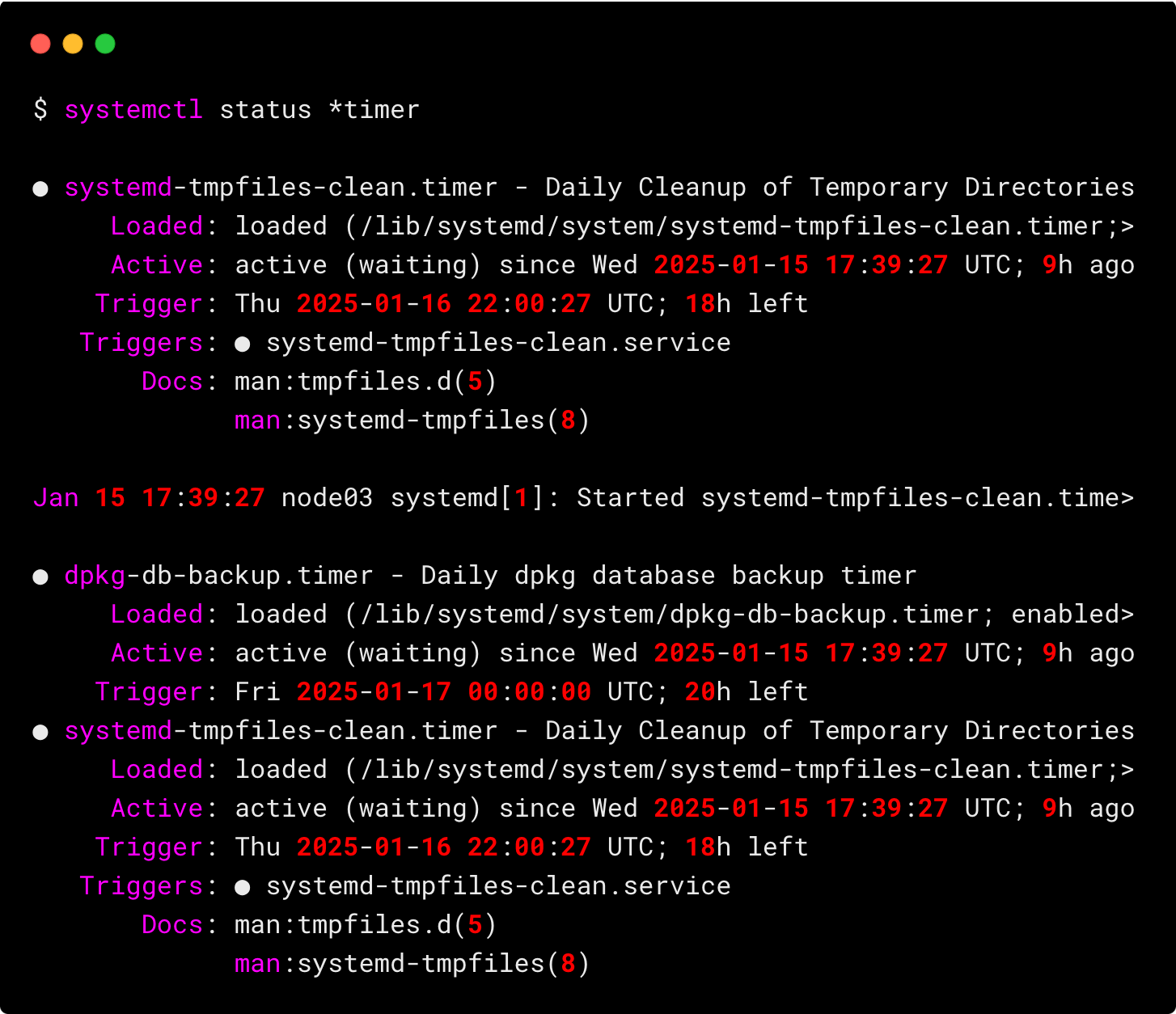
By default there will be some timers running on your system, run the following command to list all the available timers.
For example,`systemd-tmpfiles-clean.timer` to up old files in temporary directories like `/tmp` and `/var/tmp` based on the rules defined in `tmpfiles.d`.
```groovy
systemctl status *timer
```
You will output as shown below.
## How Systemd Timers Work?
Unlike cron, which uses a single file to schedule tasks, systemd timers use two key files, service and timer files.
- **Timer File:** Specifies when the task should run (e.g., daily, weekly, or at a specific time).
- **Service File:** Defines what the task is (the script or command to execute).
The timer file is connected to the service file, so the timer decides the schedule, and the service handles the actual work.
For example, if you want to run a backup script daily:
- You create a **service file** to define the script that will be executed.
- You create a **timer file** to set the schedule for running that service. (e.g., every day at midnight).
You can manage timers just like other services. Use commands like `systemctl start`, `systemctl stop`, `systemctl enable`, or `systemctl status` to control them.
## Understanding Systemd Timer Expression
The general syntax follows this pattern:
```bash
* *-*-* *:*:*
│ │ │ │ │ │ │
│ │ │ │ │ │ └──── Seconds (0 - 59)
│ │ │ │ │ └────── Minutes (0 - 59)
│ │ │ │ └──────── Hours (0 - 24)
│ │ │ └────────── Day of Month (1 - 31)
│ │ └──────────── Month (1 - 12)
│ └────────────── Year
└──────────────── Day of Week (Sun - Sat)
```
In this `*` represents every, which means,
1. If you give the expression as `* *-*-* *:*:*` it will run every second of every day until you stop.
2. The first single `*` represents the day of the week, which is from `Sunday to Saturday`.
3. The second set `*-*-*` represents the data which means, `year-month-day` .
4. The third set `*:*:*` represents time `hour:minute:second`.
## Understanding Systemd Timer Triggers
For systemd timers, you have many scheduling options to define when tasks should run.
These are broadly categorized into
1. **Time-based triggers**: These are relative timers that start counting from a specific event. They use the `OnActiveSec`, `OnBootSec`, `OnStartupSec`, On`UnitActiveSec`, and `OnUnitInactiveSec` options. For example:
2. `OnBootSec=1h` means run 1 hour after the system boots
3. `OnUnitActiveSec=1d` means run 1 day after the service was last activated
4. `OnActiveSec=30min` means run 30 minutes after the timer itself was activated
5. **Calendar-based triggers**: These are more specific and work on predefined dates or recurring schedules, like running a task every day at midnight, every Monday at 9 AM, or even on the first day of each month. They are perfect for tasks that need to follow a fixed schedule. For example:
6. `OnCalendar=Mon,Thu _-_-* 16:00:00` runs every Monday and Thursday at 4 PM
7. `OnCalendar=_-_-* *:00:00` runs at the start of every hour
8. `OnCalendar=_-_-* 9..17:00:00` runs every hour from 9 AM to 5 PM
Here is a list of examples.
|Definition|Systemd Timer Equivalent|Description|
|---|---|---|
|On System Boot|`OnBootSec=30s`|Runs 30 seconds after system starts up|
|Yearly|`OnCalendar=*-1-1`|Runs once a year on January 1st|
|Quarterly|`OnCalendar=quarterly`|Runs once every three months|
|Monthly|`OnCalendar=*-*-1`|Runs once a month on the 1st day|
|Weekly|`OnCalendar=Sun`|Runs once a week on Sunday|
|Daily|`OnCalendar=*-*-* 00:00:00`|Runs once a day at midnight|
|Hourly|`OnCalendar=*-*-* *:00:00`|Runs once an hour at the start of each hour|
|Every Monday at 9 AM|`OnCalendar=Mon 09:00:00`|Runs every Monday at 9:00 AM|
|First Day of the Month|`OnCalendar=*-*-01 00:00:00`|Runs on the 1st of every month at midnight|
|Weekends at 2 PM|`OnCalendar=Sat,Sun 14:00`|Runs every Saturday and Sunday at 2:00 PM|
|Semiannually|`OnCalendar=semiannually`|Runs twice a year|
## Systemd Timer Expression Examples
Now you have an idea about the systemd timer expression structure and triggers, let's look into some examples of how it is used.
💡
The systemd timer syntax is slightly different from cron, with more flexibility in expressing time and date.
|Description|Expression|Explanation|
|---|---|---|
|Every 5 minutes on weekends|`Sat,Sun *-*-* *:0/5:00`|Specifies Saturday and Sunday, every 5 minutes|
|Run at midnight and noon every day|`*-*-* 0,12:00:00`|Runs at 12 AM and 12 PM|
|Run every 2 hours starting at midnight|`*-*-* 0-23/2:00:00`|Runs every 2 hours from midnight|
|Run at midnight on the 1st and 15th of every month|`*-*-1,15 0:00:00`|Runs at midnight on 1st and 15th of each month|
## Systemd Timer File
Now that we have the basics, lets look at systemd timer file.
A systemd timer file typically consists of three sections:
1. Unit - Description for the timer.
2. Timer - Specifies the schedule information.
3. Install - Specifies how the unit should be started and the target.
Here’s an example of a simple timer file:
```groovy
[Unit]
Description=Description of what this timer do
[Timer]
OnBootSec=10min
OnUnitActiveSec=1h
OnCalendar=Mon *-*-* 10:10:*
Unit=test.service
Persistent=true
[Install]
WantedBy=multi-user.target
```
- The `OnBootSec` starts the timer at the specified time after the system starts, in the above file, it is 10 min.
- `OnUnitActiveSec` triggers the timer in the specified time after the service is started. In the above file it's 1 hour which means it runs every 1 hour.
- The `OnCalendar` starts the timer at the specified time, in the above file, it is every Monday at 10.10.
- `Unit` specifies the service that has to be triggered by this timer.
- `Persistent=true` runs missed runs when the system comes back up
- `WantedBy` ensures the timer starts automatically at system boot by linking it to the `multi-user.target`.
To know more about the timer configuration, you can make use of the man command.
```bash
$ man systemd.timer
```
## Systemd Service File
Now, lets look at the systemd service file.
Like systemd timer file, the systemd service file also consists of three sections:
1. Unit - Description for the timer.
2. Service - Defines what it should do.
3. Install - Specifies how the unit should be started and the target.
Here’s an example of a simple service file:
```groovy
[Unit]
Description=Description of what service file do
[Service]
ExecStart=/usr/local/bin/test.sh
Restart=on-failure
RestartSec=5s
StartLimitInterval=10min
StartLimitBurst=2
[Install]
WantedBy=multi-user.target
```
- `ExecStart`: Command or script that need to be executed.
- `Restart`: Tells when to restart, it can be on-failure or always.
- `RestartSec`: Time to wait before starting the next restart.
- `StartLimitInterval`: Wait a specified time for restart if the max restart limit has been reached.
- `StartLimitBurst`: Maximum restart attempts in the interval.
For example, If the service fails while running the specified file, it will try to restart 2 times.
If the restart limit has been reached, it will wait for 10 minutes before triggering another restart. After this period, the restart counter resets, allowing the service to try again.
You can use the man command to know more about the timer configuration.
```bash
$ man systemd.service
```
## Setting Up a Systemd Timer (Practical Example)
Let's create a system timer that writes in a file every 2 minutes from Monday to Friday.
****Important Note****: This is a demo example to help understand systemd timers. In real-world scenarios, backups are typically scheduled at midnight or once every 2 days. The 2-minute interval used here is for learning purposes to see quick results.
Follow these steps to create and test a systemd timer:
### Step 1: Create a Script
First, create a script named `backup.sh` that your systemd timer needs to run.
```groovy
sudo vi /usr/local/bin/backup.sh
```
Add the following content.
```groovy
#!/bin/bash
echo "$(date '+%Y-%m-%d %H:%M:%S') Backup Completed!" >> /tmp/backup_output.log
```
This file will write `Backup Completed!` in the file `/tmp/backup_output.log` with time and data.
Make the script `backup.sh` executable.
```groovy
sudo chmod +x /usr/local/bin/backup.sh
```
### Step 2: Create a Service File
Define the task you want to execute in a service file. Let’s create a file called `backup.service`.
```groovy
sudo vi /etc/systemd/system/backup.service
```
Add the following content.
```groovy
[Unit]
Description=Run Backup Script
[Service]
ExecStart=/usr/local/bin/backup.sh
Restart=on-failure
RestartSec=10s
StartLimitInterval=5min
StartLimitBurst=3
[Install]
WantedBy=multi-user.target
```
In this, we have added the restart functions, if the service exits with a non-zero exit code, it will attempt to restart up to the specified number of times within the defined interval.
### Step 3: Create a Timer File
Now, create a timer file to schedule the service. Save it as `backup.timer`.
```groovy
sudo vi /etc/systemd/system/backup.timer
```
Add the following content.
```groovy
[Unit]
Description="Take backup every 2 minutes"
[Timer]
OnCalendar=Mon..Fri *-*-* *:0/2:00
Unit=backup.service
Persistent=true
[Install]
WantedBy=multi-user.target
```
The `Mon..Fri *-*-* *:0/2:00` expression triggers the run every 2 minutes from Monday to Friday.
Also, the `Persistent=true` expression makes sure the missed runs are executed on the next system restart.
### Step 4: Enable and Start the Timer
Reload systemd to recognize the new files.
```groovy
sudo systemctl daemon-reload
```
Enable and start the timer.
```groovy
sudo systemctl enable --now backup.timer
```
### Step 5: Verify the Timer
Check the status of the timer to ensure it’s active.
```groovy
sudo systemctl status backup.timer
```
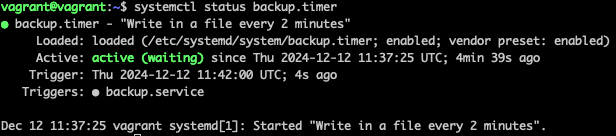
After 2 minutes, check the `/tmp/backup_output.log` if timer writing every 2 minutes.
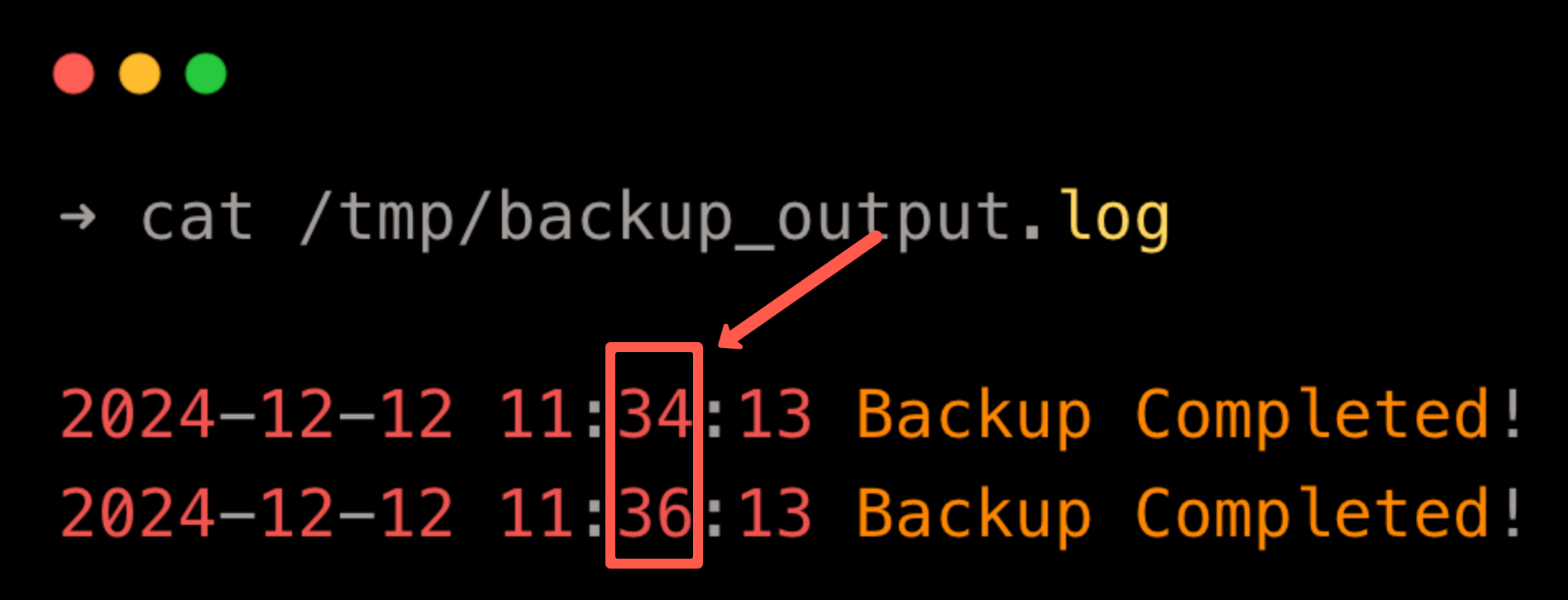
You can see that it's written every 2 minutes in the file.
Let's check the logs of the `backup.service` to understand its output.
```groovy
journalctl -u backup.service
```
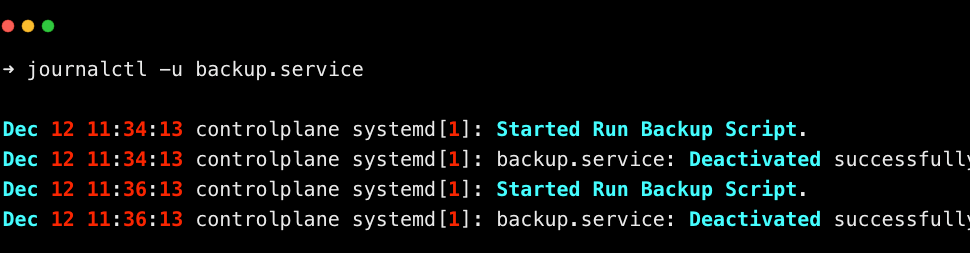
The log shows that the `backup.service` executes the backup script every two minutes and stops successfully after completing its task.
You can also see the list of scheduled timers.
```groovy
systemctl list-timers
```
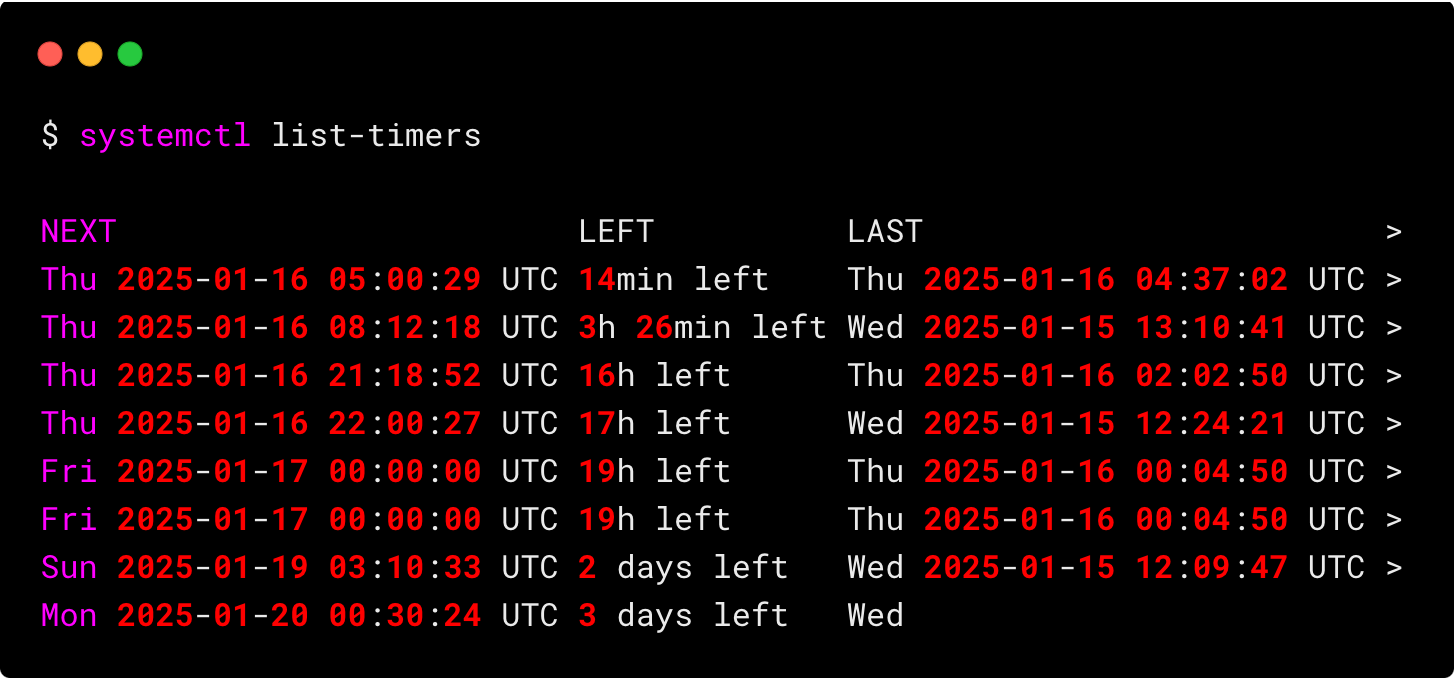
listing systemd timers
You can see all the running timers, the time left for the next run, etc.
### Step 6: Cleaning up the Timer
Once the timer is no longer needed, you can either stop the timer or remove the timer.
If you want to stop the timer, run the following command.
```groovy
sudo systemctl stop backup.timer
```
And, if you are going to remove the timer, remove the `backup.timer` and `backup.service` file and run the `daemon-reload` command.
```groovy
sudo rm /etc/systemd/system/backup.timer
sudo rm /etc/systemd/system/backup.service
```
## Troubleshooting Systemd Timers
If your timer isn’t working as expected, follow these steps:
Reload Systemd if you make changes to the timer or service file.
```
sudo systemctl daemon-reload
```
Run the service directly to ensure it works:
```
sudo systemctl start <service-name>.service
```
View Logs:
```
journalctl -u <timer-name>.service
```
Check Timer Status:
```
sudo systemctl status <timer-name>.timer
```
## Advantages of Systemd Timers Over Cron
1. Use `journalctl` to view logs for both timers and services.
2. With `Persistent=true`, timers run missed tasks after a system reboot.
3. Timer and service statuses are easy to inspect with `systemctl status`.
4. Timers integrate directly with systemd services, simplifying dependency management.
5. Use `OnCalendar` for intuitive time expressions or relative schedules such as `OnBootSec` and `OnUnitActiveSec`.
## Real-World Use Cases
Here are common scenarios where systemd timers shine:
- Used for regular linux backups.
- Automated System Maintenance tasks like log rotation, disk cleanup, and updates.
- Run health checks or monitoring scripts at intervals for monitoring.
## Conclusion
Systemd timer is a modern alternative to cron.
They offer enhanced functionality, better integration, and superior logging capabilities.
Whether you're managing backups, running maintenance tasks, or automating deployments, systemd timers provide a flexible and reliable solution for scheduling tasks in Linux.
Take the time to explore systemd timers and see how they can simplify task automation in your environment!